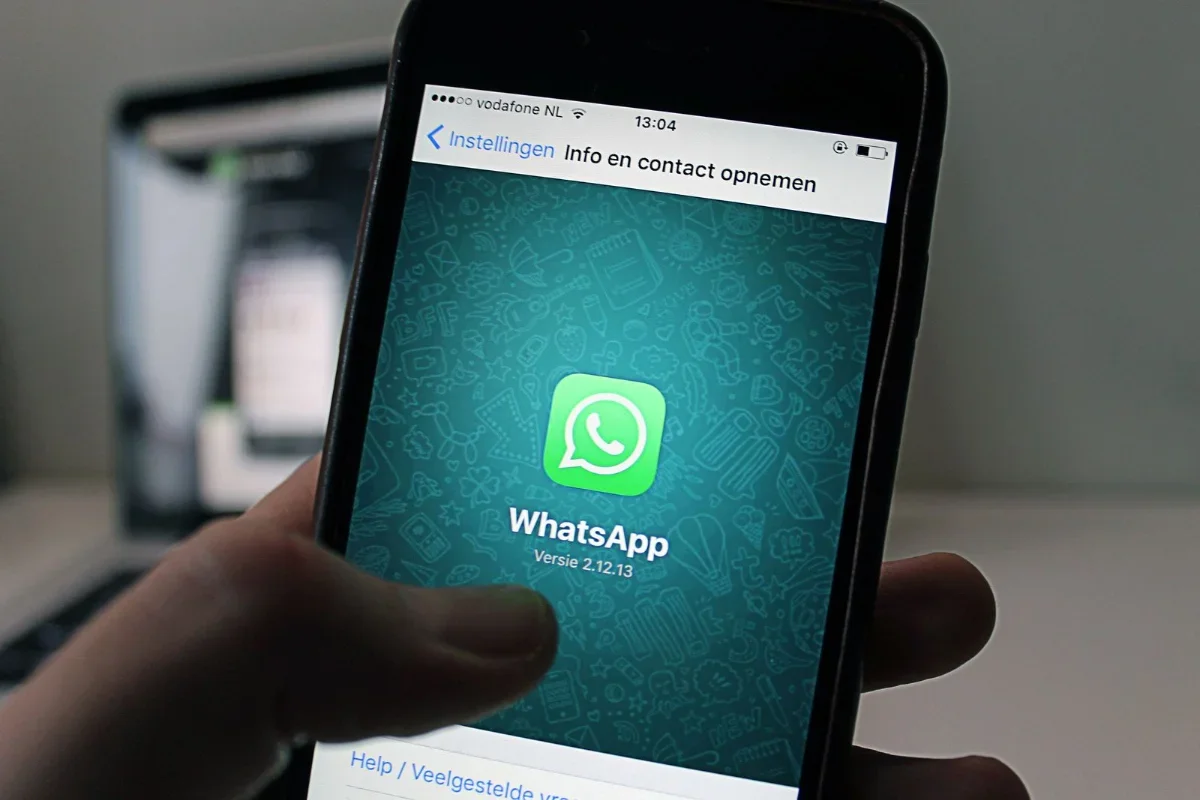
Ugandan customers love WhatsApp. It is where they talk to friends, family, churches, schools and increasingly businesses. Many potential customers who visit your website will not fill in a contact form or send an email, but they will happily send a WhatsApp message asking about prices, availability or delivery. Adding a WhatsApp chat button to your website removes friction: with one tap on a phone, the visitor opens a chat with your business. For many local businesses, this single change significantly increases enquiries. This guide explains how to add a WhatsApp button to any website and how to make the most of the conversations it generates.
Step 1: Set up WhatsApp Business
Before adding a button, use the free WhatsApp Business app rather than personal WhatsApp for your business number. It lets you create a business profile with your address, hours, website and description; set up a product catalogue; use quick replies for common questions; set greeting and away messages; and label chats to organise leads, such as "new customer", "paid" or "follow up". Larger businesses that need multiple staff responding or automated messages can use the WhatsApp Business Platform (API) through approved providers.
Step 2: Create your click-to-chat link
WhatsApp provides a simple link format that opens a chat with your number: https://wa.me/256XXXXXXXXX. Use your full number in international format without the plus sign, leading zero, spaces or dashes. For example, the number 0772 123 456 becomes 256772123456. You can add a pre-filled message, which helps you know where enquiries come from and makes it easier for customers to start: https://wa.me/256772123456?text=Hello%2C%20I%20saw%20your%20website%20and%20would%20like%20to%20ask%20about... The text must be URL-encoded, with spaces as %20. Test the link on your phone before using it.
Step 3: Add the button to your website
WordPress websites
Several free plugins add a floating WhatsApp button, such as "Click to Chat" and "Join.chat". After installing, enter your number, default message, button position and display rules, such as showing it only on mobile, or on certain pages. Choose a lightweight plugin and avoid installing several chat plugins, which slow your site.
Other website builders
Most builders such as Wix, Shopify and Squarespace have WhatsApp apps or allow adding custom HTML.
Custom websites
A developer can add a simple floating button using HTML and CSS linking to your wa.me URL, without any plugin. This is the lightest option for performance. For example, a fixed-position circular green button with the WhatsApp icon in the bottom-right corner, linking to your click-to-chat URL and opening in a new tab. Our web design team includes WhatsApp integration on business websites we build.
Step 4: Place WhatsApp links strategically
Beyond a floating button, add WhatsApp links where customers make decisions: product pages with pre-filled messages mentioning the product name, pricing pages, contact pages and service pages. For an online shop, an "Order on WhatsApp" button can work alongside the normal checkout, especially for customers who prefer to negotiate or confirm details first.
Step 5: Track WhatsApp enquiries
To measure results, track clicks on the WhatsApp button as events in Google Analytics 4, often using Google Tag Manager. Use different pre-filled messages on different pages or campaigns so you know which pages generate conversations. See Google Analytics 4 for beginners.
Step 6: Respond quickly and professionally
A WhatsApp button creates an expectation of fast replies. If customers wait hours for a reply, they will message competitors. Set clear business hours in your profile, use away messages outside working hours, prepare quick replies for common questions, and ensure someone is responsible for responding. Move serious enquiries towards quotes, invoices or orders, and keep records of leads.
Best practices and pitfalls
- Do not rely only on WhatsApp; keep email and forms for customers who prefer them.
- Avoid sending unsolicited bulk messages, which can get your number banned.
- Protect your business number with two-step verification in WhatsApp settings.
- Make sure the button does not cover important page content on mobile screens.
- Respect customers' privacy and data.
Frequently asked questions
Can I use my personal number?
You can, but a dedicated business number with WhatsApp Business is more professional and easier to manage.
Does a WhatsApp button slow down my website?
A simple link-based button has almost no impact. Heavy plugins can, so choose lightweight solutions.
Can several staff answer the same WhatsApp number?
WhatsApp Business supports linked devices, and the Business Platform via providers supports team inboxes.