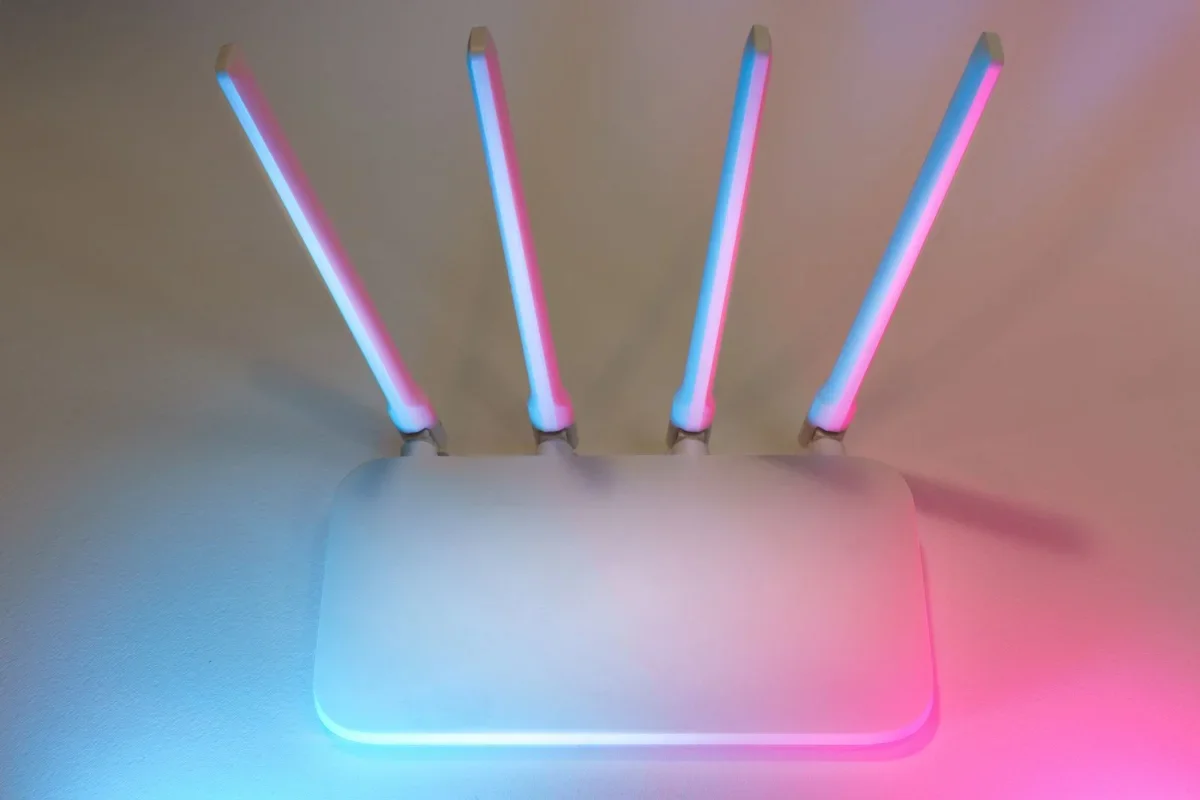
Every Wi-Fi router, whether it is the fibre router your internet provider installed, a TP-Link or Tenda router you bought for home, or a Huawei 4G router or MiFi from your mobile network, has a hidden control panel. From this panel you can change your Wi-Fi name and password, see who is connected, block unwanted devices, set up a guest network and adjust security settings. Many people never open it, which is why so many Ugandan homes and offices still use default passwords that neighbours, former tenants and visitors know. This guide explains how to find your router's address, log in, make the most useful changes and solve common problems.
Step 1: Find your router's IP address
The control panel is reached through a special local address. The most common addresses are:
- 192.168.1.1: used by many TP-Link, Huawei, ZTE and internet provider routers.
- 192.168.0.1: common on D-Link, Tenda and some TP-Link models.
- 192.168.8.1: very common on Huawei 4G routers and MiFi devices used with Ugandan mobile networks.
- 192.168.100.1: used by some fibre optical network terminals.
- 10.0.0.1, or web addresses such as tplinkwifi.net on some models.
The easiest way to find yours is to check the sticker on the bottom or back of the router. It usually lists the login address, the default admin username and password, and the default Wi-Fi name and password.
You can also find the address from a connected device. On Windows, open Command Prompt, type ipconfig and look for "Default Gateway". On Android, open Wi-Fi settings, tap your connected network and look for "Gateway" or "Router". On iPhone, go to Settings, Wi-Fi, tap the "i" next to your network and look at "Router". On a Mac, open System Settings, Network, Wi-Fi, Details, then TCP/IP.
Step 2: Open the login page
- Connect to the router's Wi-Fi network or plug in with a network cable. You must be on the router's network; the address does not work from elsewhere.
- Open a web browser and type the address directly into the address bar at the top, for example
192.168.1.1. Do not type it into the Google search box, which will just search for the numbers. - Enter the admin username and password.
Common default logins include admin/admin or admin/password, but many modern and provider-installed routers use unique passwords printed on the sticker. If your internet provider installed the router, they may have changed the login; contact them if the default does not work.
Step 3: Change your Wi-Fi name and password
- Look for a menu called Wireless, WLAN, Wi-Fi settings or Basic settings.
- Change the SSID, which is the network name people see. Avoid using your full name, phone number or house number, which tells strangers whose network it is.
- Set the security mode to WPA2-PSK or WPA3 (or WPA2/WPA3 mixed for compatibility with older devices).
- Enter a new password of at least twelve characters. A memorable phrase with numbers works well.
- Click Save or Apply. Your devices will disconnect; reconnect them using the new password.
Dual-band routers have separate settings for the 2.4 GHz and 5 GHz networks. Update both, or enable a single combined network name if the router supports it.
Step 4: Change the router's admin password
This step is often forgotten but very important. If the router still uses the default admin password, anyone connected to your Wi-Fi could log into the control panel, see your Wi-Fi password, change settings or lock you out. Find the System, Management, Administration or Maintenance section and set a strong new admin password. Write it down somewhere safe.
Other useful settings to explore
- Connected devices: see every phone, laptop and gadget on your network. See how to see who is using your Wi-Fi.
- Guest network: create a separate network for visitors and customers so they cannot reach your own devices.
- Parental controls: block inappropriate sites or set internet hours for children's devices.
- WPS: turn it off, because the WPS PIN feature can be cracked.
- Firmware update: install updates that fix security problems and improve stability.
- DNS: some users set public DNS servers such as 1.1.1.1 or 8.8.8.8 for reliability or filtering.
Troubleshooting common problems
The login page will not load
First, confirm you are connected to that router's Wi-Fi and not using mobile data; temporarily turn off mobile data on your phone. Check the gateway address again with ipconfig or your phone's Wi-Fi details. Try typing http:// before the address, use a different browser, or clear the browser cache. Restart the router and try again.
The password is wrong
If you have forgotten a changed admin password, you can perform a factory reset by pressing and holding the small reset button on the router, usually with a pin, for about ten seconds until the lights flash. This restores all default settings, including the default login and Wi-Fi password, and you will need to set up the internet connection again. For fibre routers installed by your provider, call the provider first, because they may need to reconfigure the connection after a reset.
The browser shows "Your connection is not private"
Router control panels often use self-signed security certificates. On your own home or office network, it is usually safe to proceed.
Frequently asked questions
Is 192.168.1.1 a website?
No. It is a private address that only works inside your own network, pointing to your router.
Can I change my MiFi password the same way?
Yes. Most MiFi devices use 192.168.8.1 or 192.168.0.1, or provide an app. The default login and Wi-Fi password are often printed under the battery cover.