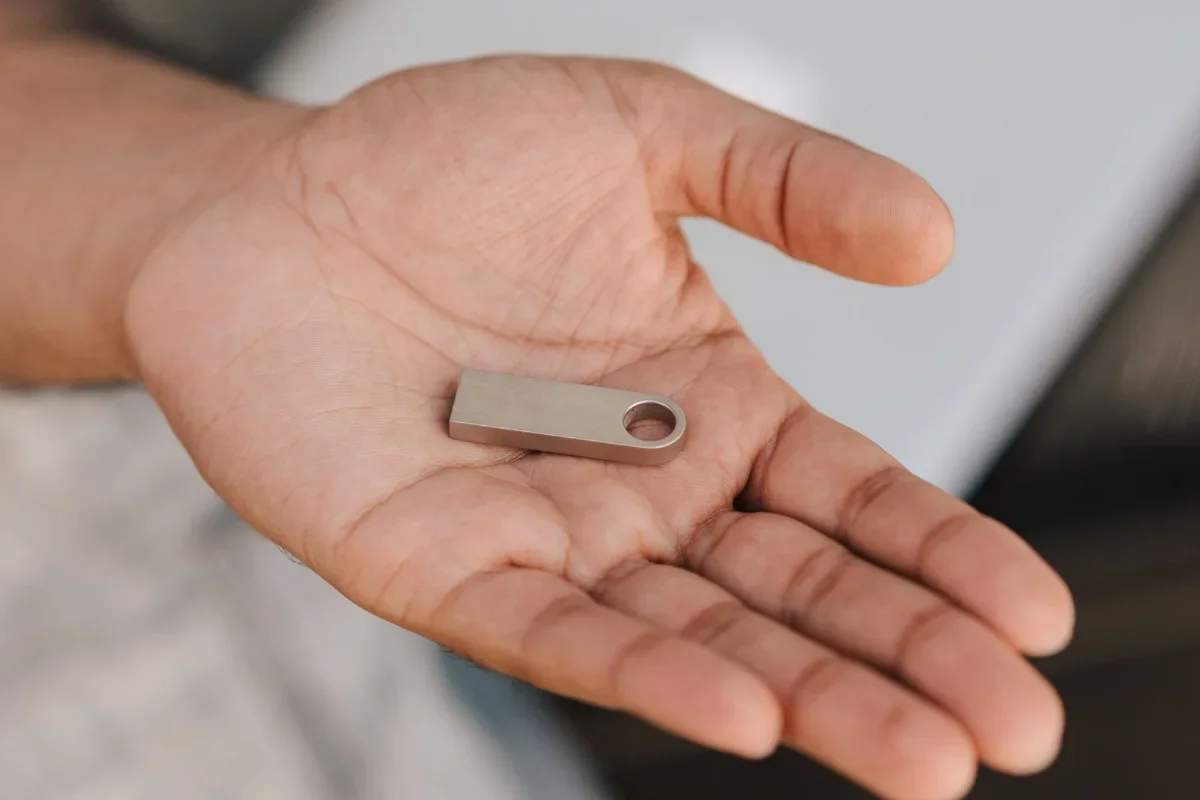
You plug your flash disk into a computer at a printing shop, a cyber café, school or a colleague's office to print a document. The next time you open the flash disk on your own computer, your folders have turned into small shortcut icons. When you double-click them, either nothing happens, or the folder opens slowly while something strange runs in the background. Your heart sinks: are your documents gone? This is the infamous shortcut virus, one of the most common computer problems in Ugandan offices, schools, universities and cyber cafés. The good news is that in most cases your files are still on the flash disk, simply hidden. This guide explains what the virus is, how to recover your files safely, how to clean your computer, and how to stop it coming back.
What is the shortcut virus?
"Shortcut virus" is a general name for a family of malicious programs, often worms written in scripting languages such as VBScript or JavaScript, that spread mainly through USB flash disks, memory cards and external drives. When it infects a drive, it typically does three things. First, it hides your real files and folders by marking them as hidden system files, so Windows does not display them. Second, it creates shortcut files with the same names and icons as your folders, so you click them without suspicion. Third, those shortcuts run the virus, which then opens your folder so you do not notice anything wrong, while the virus copies itself onto the computer and onto every other drive plugged in later.
That is why the virus spreads so quickly through shared computers. One infected machine at a busy printing shop can infect hundreds of flash disks in a day. Some variants are simply annoying, but others download additional malware, steal information or slow computers dramatically, so it should always be removed rather than ignored.
Step 1: Stop clicking the shortcuts
Every time you double-click one of the shortcuts, you may run the virus again and reinfect your computer. Leave them alone until you have recovered your files using the steps below.
Step 2: Unhide your files using the attrib command
Windows includes a built-in command that changes file attributes, and you can use it to make your hidden files visible again. On a Windows computer:
- Plug in the flash disk and open File Explorer. Note the drive letter assigned to it, for example E: or F:.
- Press the Windows key, type cmd, right-click Command Prompt and choose Run as administrator.
- Type the drive letter followed by a colon, for example
E:, and press Enter. The prompt changes to show you are now working on the flash disk. - Type the following command exactly and press Enter:
attrib -h -r -s /s /d *.*
Here is what the command does: -h removes the hidden attribute, -r removes the read-only attribute, -s removes the system attribute, /s applies the change to all files in all subfolders, and /d applies it to folders too. The command may take a little time on a large flash disk. When it finishes, open the flash disk in File Explorer. Your real folders and files should now appear alongside the shortcuts.
This command does not delete anything. It only changes how files are labelled, so it is safe to run.
Step 3: Delete the shortcuts and suspicious files
Now that your real files are visible, delete all the shortcut files on the flash disk; they usually end in .lnk. Also look for files you did not create, especially files ending in .vbs, .js, .exe, .bat or autorun.inf, and oddly named folders. Delete them unless you are certain they are yours.
To see these details, open File Explorer, click View, then Show, and turn on File name extensions and Hidden items. On older versions of Windows, these options are under View, Options, Change folder and search options.
Step 4: Scan both the flash disk and the computer
Your flash disk was infected by a computer, and the computer you are using now may also be infected after you clicked the shortcuts. Scan both:
- Microsoft Defender, built into Windows 10 and 11, is effective for most users. Right-click the flash disk in File Explorer and choose "Scan with Microsoft Defender", then run a full scan of the computer from Windows Security.
- For a second opinion, run a reputable free scanner such as Malwarebytes.
- Avoid "cracked" or pirated antivirus software. It is a common source of the very infections it claims to stop.
Step 5: Clean the computer's startup
If the shortcut virus keeps returning on new flash disks, it is probably still running on your computer every time Windows starts. Press Ctrl + Shift + Esc to open Task Manager, go to the Startup apps section and look for suspicious entries, such as items running wscript.exe or programs with random names. Disable anything suspicious. You can also check the folders %appdata% and %temp% (type them into the File Explorer address bar) for unusual .vbs or .js files. If you are not comfortable doing this, ask a trusted IT technician to help clean the computer.
Step 6: Back up and format the flash disk
Once your files are safely copied to a clean computer or cloud storage, format the flash disk to remove any remaining traces of the virus. Right-click the drive, choose Format, select a file system such as exFAT or NTFS, and click Start. After formatting, copy your files back. This gives you a clean drive.
How to prevent the shortcut virus
- Keep Windows and Microsoft Defender updated. Updates close security holes many worms use.
- Scan every flash disk before opening it, especially after using public computers, printing shops or school labs.
- Turn off AutoPlay under Settings, Bluetooth and devices, AutoPlay, so drives do not open automatically.
- Use cloud storage or email instead of flash disks where possible. Sending a document by email or sharing a Google Drive link to the printing shop avoids plugging your drive into an infected computer.
- Use a write-protected flash disk, if yours has a lock switch, when you only need a shared computer to read your files.
- For schools and businesses: keep antivirus updated on all shared computers, consider Linux or system restore tools for computer labs, and teach staff and learners not to plug in unknown drives.
Frequently asked questions
Will the attrib command delete my files?
No. It only removes hidden, system and read-only attributes so files become visible again.
Can a Mac or Linux computer be infected?
Most shortcut viruses are designed for Windows, so Macs and Linux computers usually do not run them, but they can still carry infected files to Windows machines.
My files are still missing after running attrib. What should I do?
Stop saving anything new to the flash disk and try free recovery software such as Recuva or PhotoRec. See how to recover deleted files.
Related reading: how to keep your computer free from viruses.