
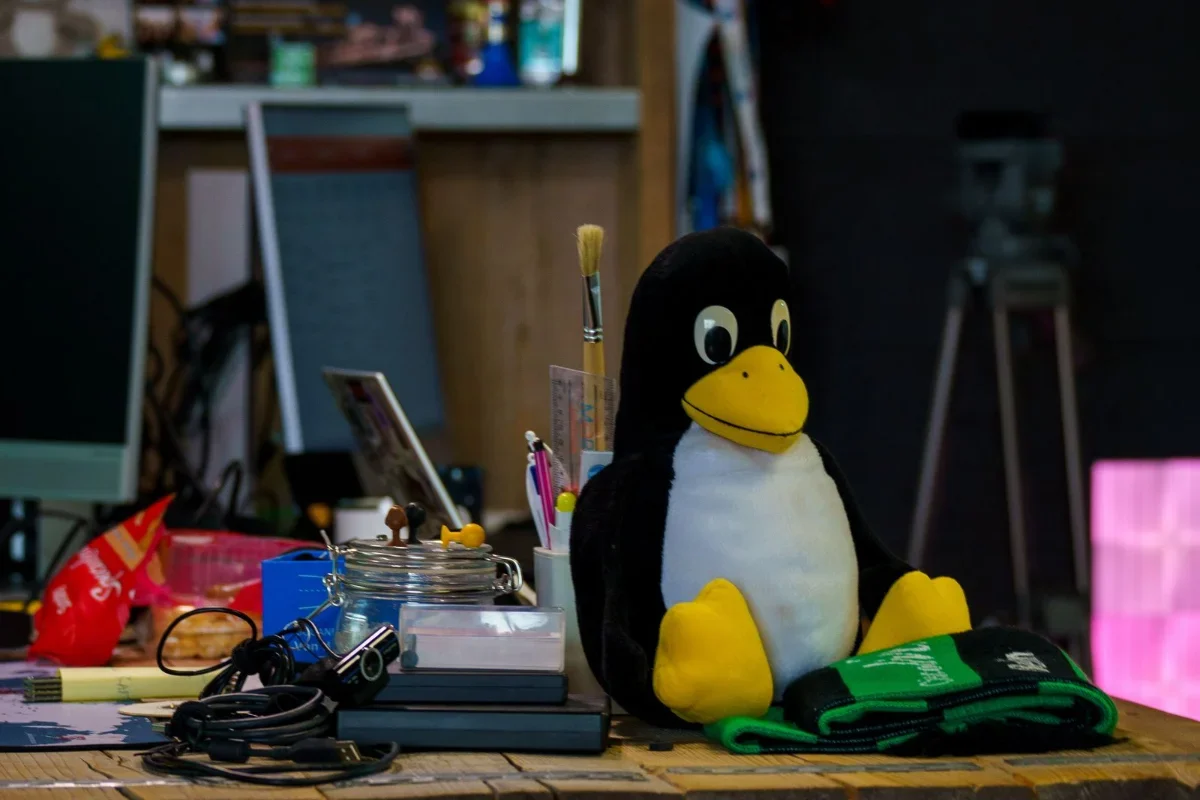
Most computers in Uganda run Microsoft Windows, often an old or unlicensed copy, and many struggle with slowness, viruses and expensive software. Meanwhile, the operating system that powers most of the world's web servers, Android phones, supercomputers and cloud platforms is free for anyone to use: Linux. For home users, schools with ageing computer labs, small offices and anyone interested in a technology career, Linux is worth understanding. This guide introduces Linux in simple terms, helps you choose a version, and explains how to try it safely.
What is Linux?
Linux is an operating system, the core software that manages your computer's hardware and runs your programs, just like Windows or macOS. It began in 1991 as a project by Linus Torvalds and has grown through contributions from thousands of developers and companies. Linux is open source, meaning its code is public and it can be freely used and shared. Linux comes packaged in "distributions" or "distros", which combine the Linux core with a desktop interface, software and tools. Popular distros include Ubuntu, Linux Mint, Fedora and Debian.
Why consider Linux?
It is free and legal. No licence fees, and no need for pirated software that may contain malware. It revives older computers. Lightweight distros run well on machines that struggle with modern Windows, making them ideal for schools and NGOs with donated computers. It is secure. Linux's permission system and smaller share of desktop users mean far fewer viruses target it, though no system is perfectly secure. It is stable. Linux systems can run for long periods without slowing down. It is a valuable career skill. Servers, cloud platforms and networking equipment run Linux, so system administrators, developers, network engineers and cybersecurity professionals all benefit from Linux skills.
Which distribution should a beginner choose?
Linux Mint is often recommended for people moving from Windows, because its Cinnamon desktop looks familiar, with a start menu and taskbar. Ubuntu is the most popular distro, with a large community, excellent documentation and broad hardware support. Lubuntu, Xubuntu or Linux Mint XFCE are lighter versions ideal for older computers with limited memory. For servers, Ubuntu Server and Debian are common choices, and many hosting servers run Linux, including the servers behind our hosting.
How to try Linux without risk
You can test Linux without changing your existing system. Download the distro's ISO file from its official website. Use a free tool such as Rufus or balenaEtcher to create a bootable USB flash drive of at least 8GB. Restart your computer and boot from the USB, usually by pressing a key like F12, F2 or Esc during start-up. Choose "Try" rather than "Install" to run Linux live from the USB. You can explore the desktop, connect to Wi-Fi and test programs. When you restart and remove the USB, your computer returns to normal. Download large files over a stable connection; distro images are a few gigabytes.
Installing Linux
If you like it, you can install Linux to replace Windows or alongside it in a "dual boot" setup, where you choose which system to start. Before installing, back up all important files, because partitioning mistakes can erase data. Installers guide you through language, keyboard, time zone (Africa/Kampala), user account and disk setup. Installation typically takes 15 to 30 minutes.
Software on Linux
Linux distros include a Software Centre, similar to an app store, where you install programs with a click. Common programs include Firefox and Chrome for browsing, LibreOffice for documents, Thunderbird for email, VLC for media, GIMP for images, and Zoom, which offers a Linux version. Many tasks today happen in a web browser, such as Google Workspace, Microsoft 365 online, WhatsApp Web and business systems, which work the same on Linux. Some programs, such as certain accounting packages and Adobe software, do not run natively; check that your essential software has Linux versions or web alternatives. See free and open source software for businesses.
Meeting the terminal
Linux has a reputation for requiring typed commands. Modern desktops mean you rarely need the terminal for everyday use, but learning basic commands is empowering and essential for tech careers. Start with commands like ls (list files), cd (change directory), pwd (show current folder), mkdir (make a folder), cp and mv (copy and move), and sudo apt update && sudo apt upgrade (update software on Ubuntu and Mint). Be careful with commands copied from the internet, especially those starting with sudo, which run with administrator privileges.
Linux in schools and offices
Schools can use Linux to extend the life of computer labs and teach students without licence costs; see setting up a school computer lab. Offices with mainly browser-based work can save money with Linux on staff computers. Pilot first and train users.
Learning Linux for a career
Free resources include the Linux Foundation's introductory courses, official distro documentation and online tutorials. Practise by setting up a Linux virtual machine, hosting a small website, or running a Raspberry Pi. Certifications such as Linux Foundation, LPI and CompTIA Linux+ demonstrate skills to employers.
Frequently asked questions
Can Linux get viruses?
It can, but desktop Linux malware is far less common. Keep software updated and install from trusted sources.
Will Linux work with my printer and Wi-Fi?
Most common hardware works, but test with a live USB first.