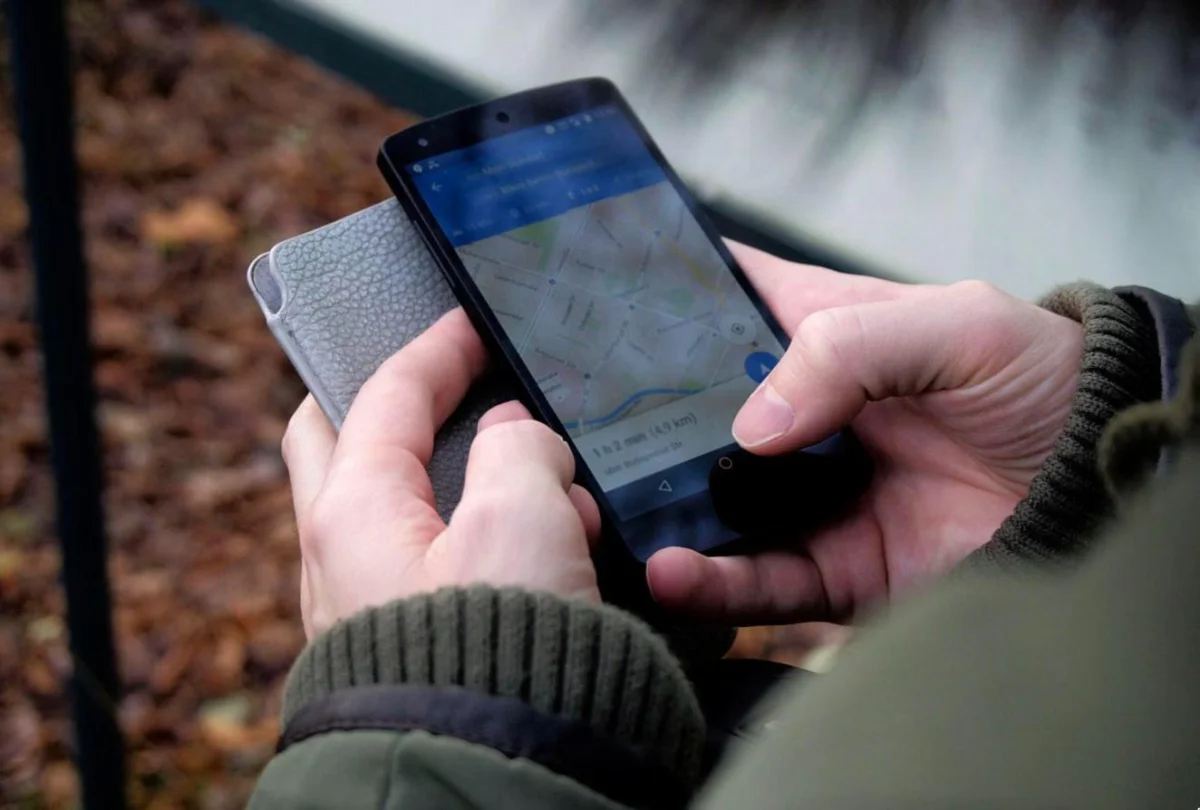
Search for "pharmacy near me", "car wash Ntinda" or "hardware shop Mukono" and Google usually shows a small map with three businesses before any website appears. That box is called the local pack, and the businesses in it come from Google Business Profile, Google's free listing for physical businesses and service providers. For many Ugandan businesses, a well-kept profile brings in more calls, WhatsApp messages and walk-in customers than the website itself.
This guide walks through setting up a profile, getting it verified, and doing the small things that help it rank and convert.
What a Google Business Profile shows
Your profile is the panel that appears on Google Search and Google Maps when people look up your business or the type of service you offer. It can show your business name, category, location pin, opening hours, phone number, website, photos, reviews, products, services and short updates called posts. Customers can call you, get directions or visit your website in one tap.
Because it appears on Maps, the profile is also what boda riders, delivery drivers and first-time customers use to find your exact location, which matters in a city where many streets have no visible names or numbers.
Who should have one
Any business that serves customers in person or in a defined area can have a profile. That includes shops, restaurants, clinics, schools, hotels, salons, garages, law firms, churches and offices. Service businesses that travel to customers, such as plumbers, electricians, cleaners and event companies, can also list themselves and hide their address while showing the areas they serve.
Purely online businesses with no customer-facing location are not eligible, and Google may remove profiles that try to work around this.
Step 1: Check whether your business is already listed
Search for your business name on Google Maps. Customers or Google itself may have already created a basic listing. If you find one, choose the option to claim or manage it rather than creating a duplicate. Duplicate listings split your reviews and confuse customers.
Step 2: Create or claim the profile
Go to Google Business Profile while signed in to a Google account you control long term. Use a business account, such as one tied to your company email address, rather than the personal Gmail of a staff member who may leave. Then enter:
Business name: use your real trading name exactly as it appears on your signage. Adding keywords such as "Best Salon Kampala Cheap" breaks Google's guidelines and can get the profile suspended.
Primary category: this is one of the strongest ranking factors. Pick the most specific category that describes your main business, for example "Pharmacy" rather than "Health", or "Italian restaurant" rather than "Restaurant". You can add secondary categories later.
Location or service area: place the map pin precisely on your entrance. For buildings and plazas, add the building name, floor and shop number in the address lines, and a landmark if it helps, such as "opposite Shell" or "next to Stanbic".
Contact details: add a phone number that is answered during business hours and your website address if you have one.
Step 3: Verify the profile
Google needs to confirm that you really run the business before your profile goes fully live. The options Google offers depend on the business and location. Common ones are recording a short video that shows your signage, the inside of your premises and proof that you manage the business, or a code sent by phone or email. Follow the instructions carefully; for video verification, show the street, your sign and something only the owner would have, such as keys to the shop or the till.
If verification fails, check that the name on the profile matches your signage and that the pin is in the right place, then try again.
Step 4: Complete every section
Complete profiles tend to rank better and get more clicks. Work through each section:
Hours
Add your regular opening hours and update special hours for public holidays such as Christmas, Boxing Day, Independence Day and Eid. Few things frustrate customers more than travelling across town to find a closed shop that Google said was open.
Description
Write a clear description of what you do, who you serve and what makes you different, in plain language. Mention your area naturally, for example "serving Bukoto, Kisaasi and Ntinda". Do not paste links or promotional codes.
Products and services
List your main services with short descriptions and, where it makes sense, prices in UGX. A garage might list "Car diagnostics", "Wheel alignment" and "Oil change". These entries help Google match you to more specific searches.
Attributes
Attributes are small labels such as "Wheelchair accessible", "Free Wi-Fi", "Outdoor seating" or "Women-led". Add the ones that are true for your business.
Step 5: Add good photos
Profiles with real, recent photos look more trustworthy. Add your logo and a cover image, then photos of the outside of the building so people can recognise it from the road, the inside, your team at work and your products. Take photos in daylight, keep the phone steady and avoid heavy filters. Add a few new photos every month; it signals that the business is active.
Step 6: Collect and reply to reviews
Reviews influence both ranking and whether a searcher chooses you. Ask happy customers for a review at the right moment, such as after a successful repair or when a client thanks you. You can share your review link by WhatsApp or print it as a QR code at the counter. Our guide on getting reviews on Google covers this in more detail.
Reply to every review, good or bad. Thank people by name, and respond to complaints calmly, offering to resolve the issue offline. Never buy fake reviews or offer payment for five stars; Google filters suspicious reviews and can penalise the profile.
Step 7: Use posts and messages
Posts are short updates that appear on your profile: a new product, an offer for the festive season, an event or a change in hours. They keep the profile fresh and give searchers a reason to choose you today. Add a photo and a clear button such as "Call now" or "Learn more".
Also check how customers can contact you. Many Ugandan customers prefer WhatsApp, so make sure your website and description make it easy to reach you there, for example with a WhatsApp chat button on your website.
Connect your profile to your website
Your profile and website work best together. Use exactly the same business name, address and phone number on both, add a map to your contact page (see how to add Google Maps to your website), and make sure the website loads quickly on mobile data. If you serve several areas or have several branches, create a page for each location and a separate profile for each branch that has its own staff and signage.
Track what the profile brings in
The Performance section shows how many people viewed your profile, which searches found you, and how many called, asked for directions or clicked through to your website. Check it monthly. If many people view the profile but few call, improve your photos, description and reviews. If people search for a service you offer but do not mention, add it to your services list.
Common mistakes to avoid
Keyword stuffing the name. It may work briefly, but it risks suspension and looks unprofessional.
Using a virtual office or someone else's address. Google expects a real location where you serve customers, or a hidden address with service areas.
Letting a former employee own the profile. Add at least two owners or managers from the business so you never lose access.
Ignoring the profile after setup. Outdated hours, old phone numbers and unanswered reviews cost you customers quietly.
Final checklist
Before you finish, confirm that your name matches your signage, your category is specific, the pin is accurate, hours include holidays, you have at least ten good photos, every review has a reply, and your website, phone number and WhatsApp details are correct. Combined with the local SEO tips for Kampala businesses, a complete and active profile is one of the cheapest, most effective ways to get found by customers nearby.